> ## Documentation Index
> Fetch the complete documentation index at: https://docs.srd.exchange/llms.txt
> Use this file to discover all available pages before exploring further.
# Connect your wallet to SRD Exchange
> Learn how to connect MetaMask or a BSC-compatible wallet to SRD Exchange. Includes BSC network configuration and wallet setup steps.
To trade on SRD Exchange, you need a crypto wallet connected to the BNB Smart Chain (BSC) network. SRD Exchange works with any BSC-compatible wallet, but MetaMask is the most widely used option and the one covered in detail below. Once your wallet is set up and connected to BSC, you are ready to start trading.
 MetaMask is a browser extension and mobile wallet that supports custom networks including BSC. If you do not have it installed, follow these steps from the beginning.
Go to [metamask.io](https://metamask.io) and download the extension for your browser (Chrome, Firefox, Brave, or Edge), or install the MetaMask mobile app from the App Store or Google Play. Create a new wallet and store your seed phrase securely offline.
Open MetaMask, click the network selector at the top, then select **Add network**. Choose **Add a network manually** and enter the BSC network details listed in the table below. Save the network.
Use the network selector to switch from Ethereum Mainnet (the default) to **BNB Smart Chain**. Your wallet address stays the same across networks.
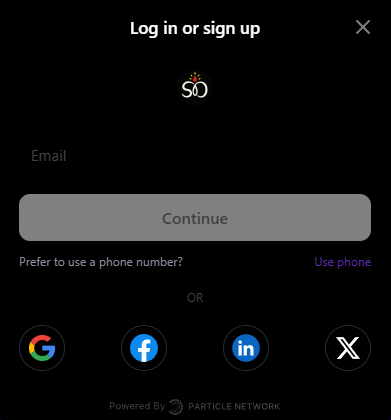
Navigate to [srd.exchange](https://srd.exchange) and click **Connect Wallet**. MetaMask will prompt you to approve the connection. Select your account and confirm. You are now connected and ready to trade.
Any wallet that supports the BNB Smart Chain network can be used with SRD Exchange. Two common alternatives to MetaMask are:
**Trust Wallet** — A mobile-first wallet with built-in BSC support. Open the Trust Wallet browser (the in-app DApp browser) and navigate to [srd.exchange](https://srd.exchange) to connect. Trust Wallet is pre-configured for BSC, so no manual network setup is needed.
**Binance Chain Wallet** — The official browser extension wallet from Binance, available for Chrome and Firefox. It supports BSC natively and connects to SRD Exchange in the same way as MetaMask: visit the site and click **Connect Wallet**.
For any other WalletConnect-compatible wallet, use the **WalletConnect** option on the SRD Exchange connection screen and scan the QR code with your wallet app.
## BSC network settings
If you need to add the BNB Smart Chain network manually (required for MetaMask and some other wallets), use these exact values:
| Setting | Value |
| ------------------ | ----------------------------------- |
| Network name | BNB Smart Chain |
| RPC URL | `https://bsc-dataseed.binance.org/` |
| Chain ID | `56` |
| Currency symbol | `BNB` |
| Block explorer URL | `https://bscscan.com` |
You can also add BSC automatically by visiting [chainlist.org](https://chainlist.org) and searching for **BNB Smart Chain (56)**, then clicking **Add to MetaMask**.
Always verify that you are on **srd.exchange** before connecting your wallet or approving any transaction. Never enter your seed phrase or private key on any website. SRD Exchange will never ask for your seed phrase.
MetaMask mobile works just as well as the desktop extension. Open the MetaMask app, use the built-in browser to navigate to srd.exchange, and connect your wallet the same way. This lets you trade and confirm payments on the go directly from your phone.
MetaMask is a browser extension and mobile wallet that supports custom networks including BSC. If you do not have it installed, follow these steps from the beginning.
Go to [metamask.io](https://metamask.io) and download the extension for your browser (Chrome, Firefox, Brave, or Edge), or install the MetaMask mobile app from the App Store or Google Play. Create a new wallet and store your seed phrase securely offline.
Open MetaMask, click the network selector at the top, then select **Add network**. Choose **Add a network manually** and enter the BSC network details listed in the table below. Save the network.
Use the network selector to switch from Ethereum Mainnet (the default) to **BNB Smart Chain**. Your wallet address stays the same across networks.
Navigate to [srd.exchange](https://srd.exchange) and click **Connect Wallet**. MetaMask will prompt you to approve the connection. Select your account and confirm. You are now connected and ready to trade.
Any wallet that supports the BNB Smart Chain network can be used with SRD Exchange. Two common alternatives to MetaMask are:
**Trust Wallet** — A mobile-first wallet with built-in BSC support. Open the Trust Wallet browser (the in-app DApp browser) and navigate to [srd.exchange](https://srd.exchange) to connect. Trust Wallet is pre-configured for BSC, so no manual network setup is needed.
**Binance Chain Wallet** — The official browser extension wallet from Binance, available for Chrome and Firefox. It supports BSC natively and connects to SRD Exchange in the same way as MetaMask: visit the site and click **Connect Wallet**.
For any other WalletConnect-compatible wallet, use the **WalletConnect** option on the SRD Exchange connection screen and scan the QR code with your wallet app.
## BSC network settings
If you need to add the BNB Smart Chain network manually (required for MetaMask and some other wallets), use these exact values:
| Setting | Value |
| ------------------ | ----------------------------------- |
| Network name | BNB Smart Chain |
| RPC URL | `https://bsc-dataseed.binance.org/` |
| Chain ID | `56` |
| Currency symbol | `BNB` |
| Block explorer URL | `https://bscscan.com` |
You can also add BSC automatically by visiting [chainlist.org](https://chainlist.org) and searching for **BNB Smart Chain (56)**, then clicking **Add to MetaMask**.
Always verify that you are on **srd.exchange** before connecting your wallet or approving any transaction. Never enter your seed phrase or private key on any website. SRD Exchange will never ask for your seed phrase.
MetaMask mobile works just as well as the desktop extension. Open the MetaMask app, use the built-in browser to navigate to srd.exchange, and connect your wallet the same way. This lets you trade and confirm payments on the go directly from your phone.